
Special Settings for Intel Connectivity Service

longl
If the Intel Connectivity Service operating in your device, please adjust these settings.
If your device is running Intel Connectivity Service, it may lead to connection problems. The service name may vary on different devices, so please check for the following names:
- Intel Connectivity Service
- Intel Connectivity Network Service
- IntelConnect Service
Although the names differ, the steps to disable them are generally the same. Here’s how to do it:
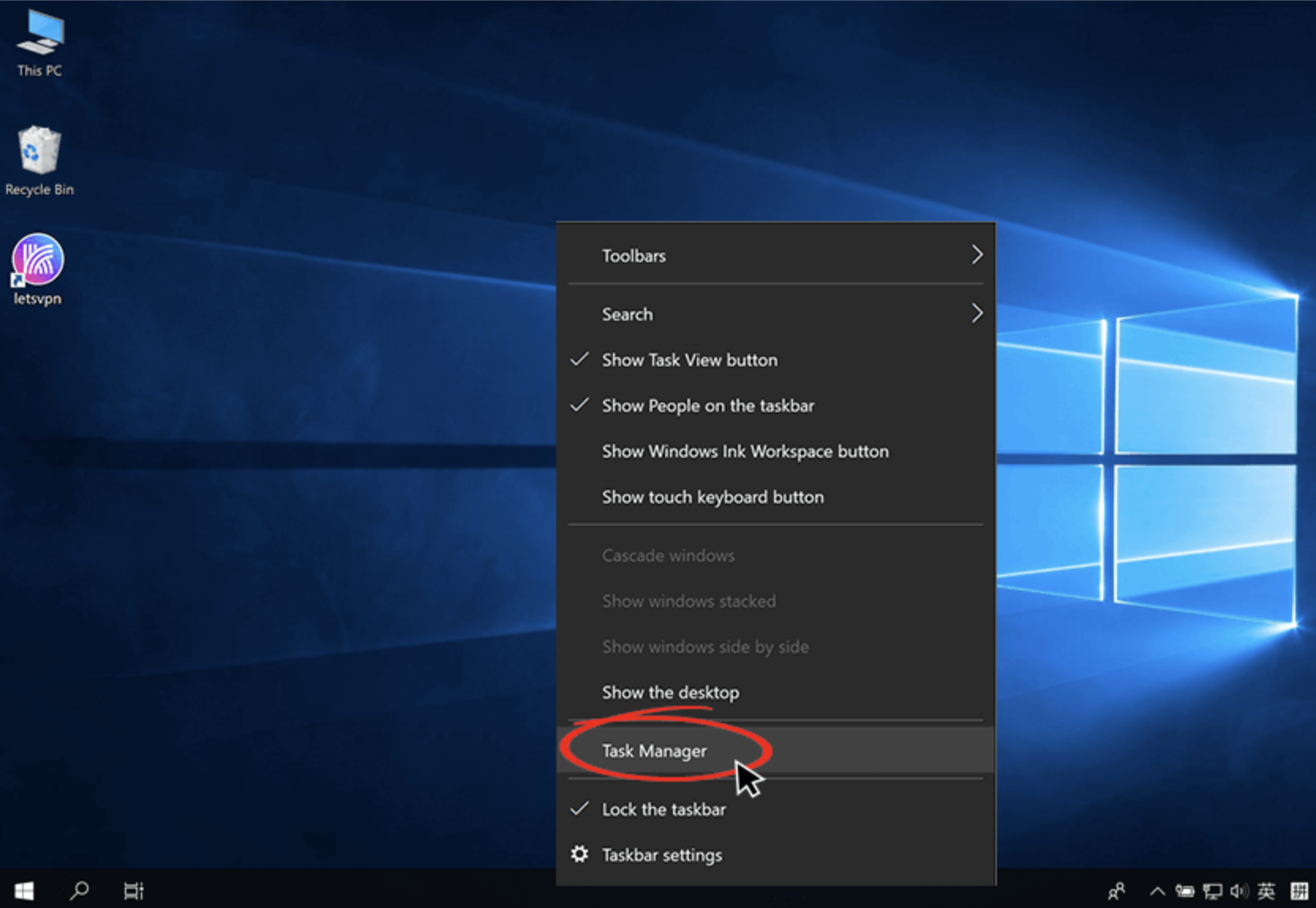
- Right click the bottom menu bar and click Task Manager
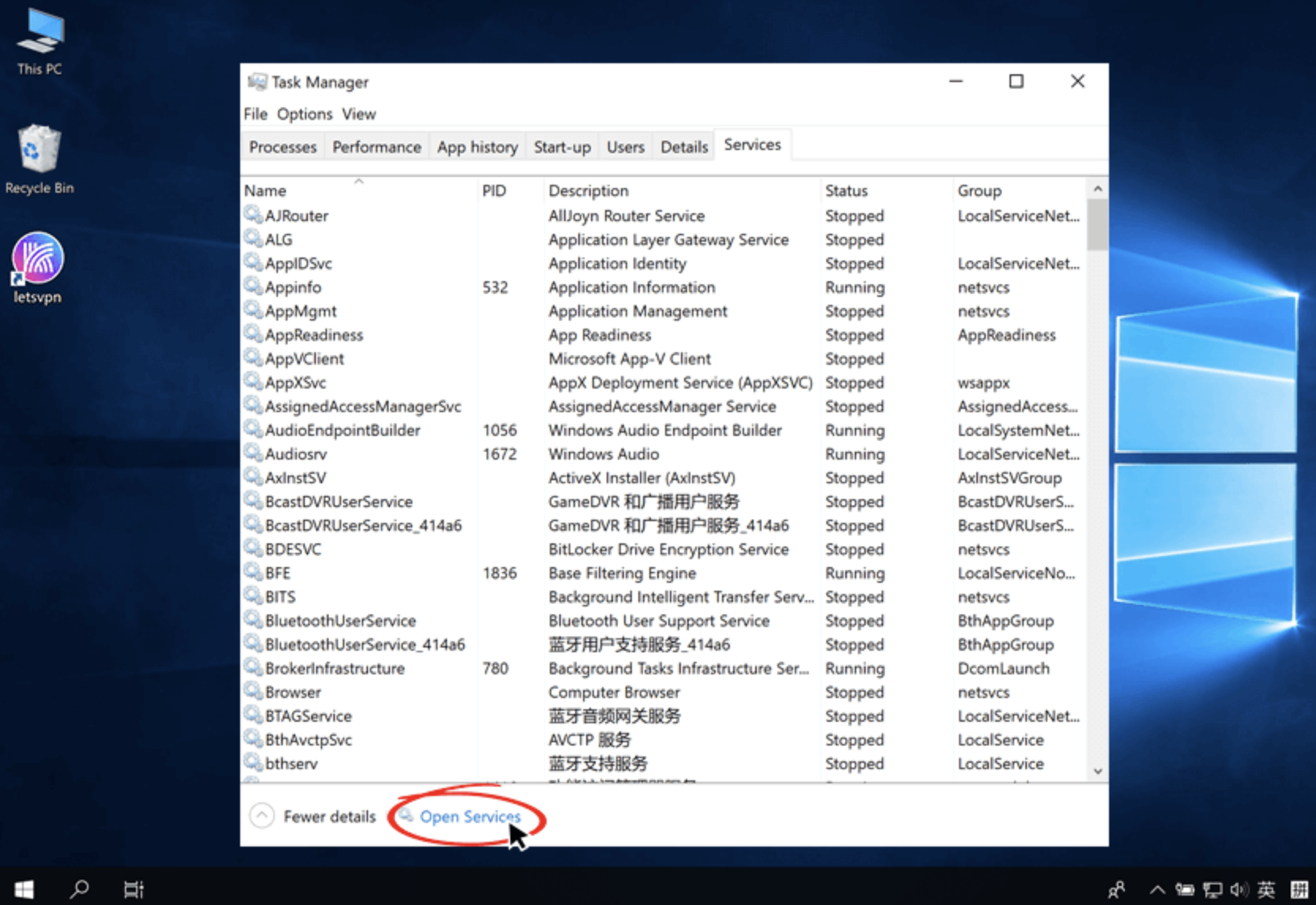
- Open Services in the Task Manager
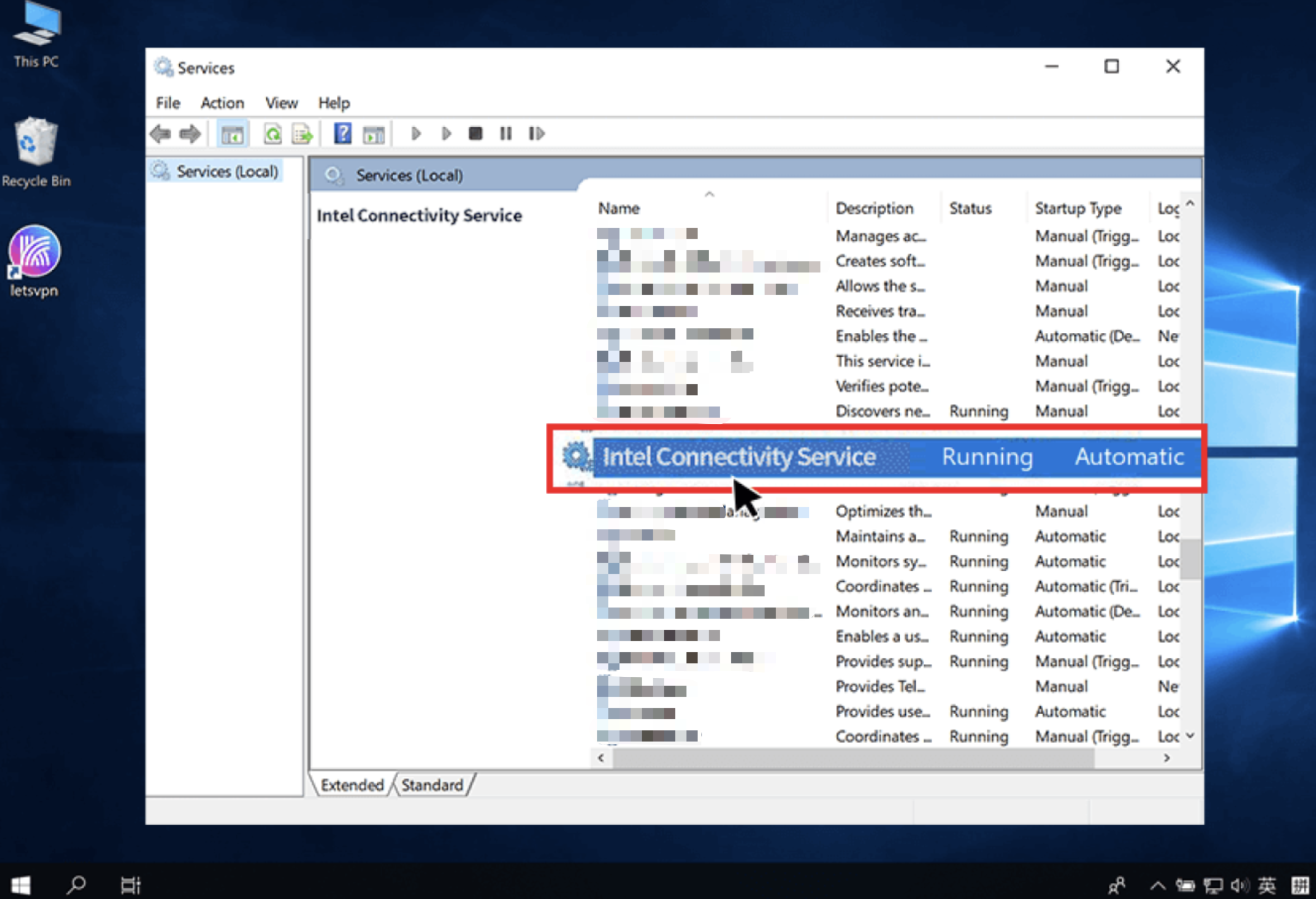
- Find “Intel Connectivity Network Service / Intel Connectivity Service” and double-click it
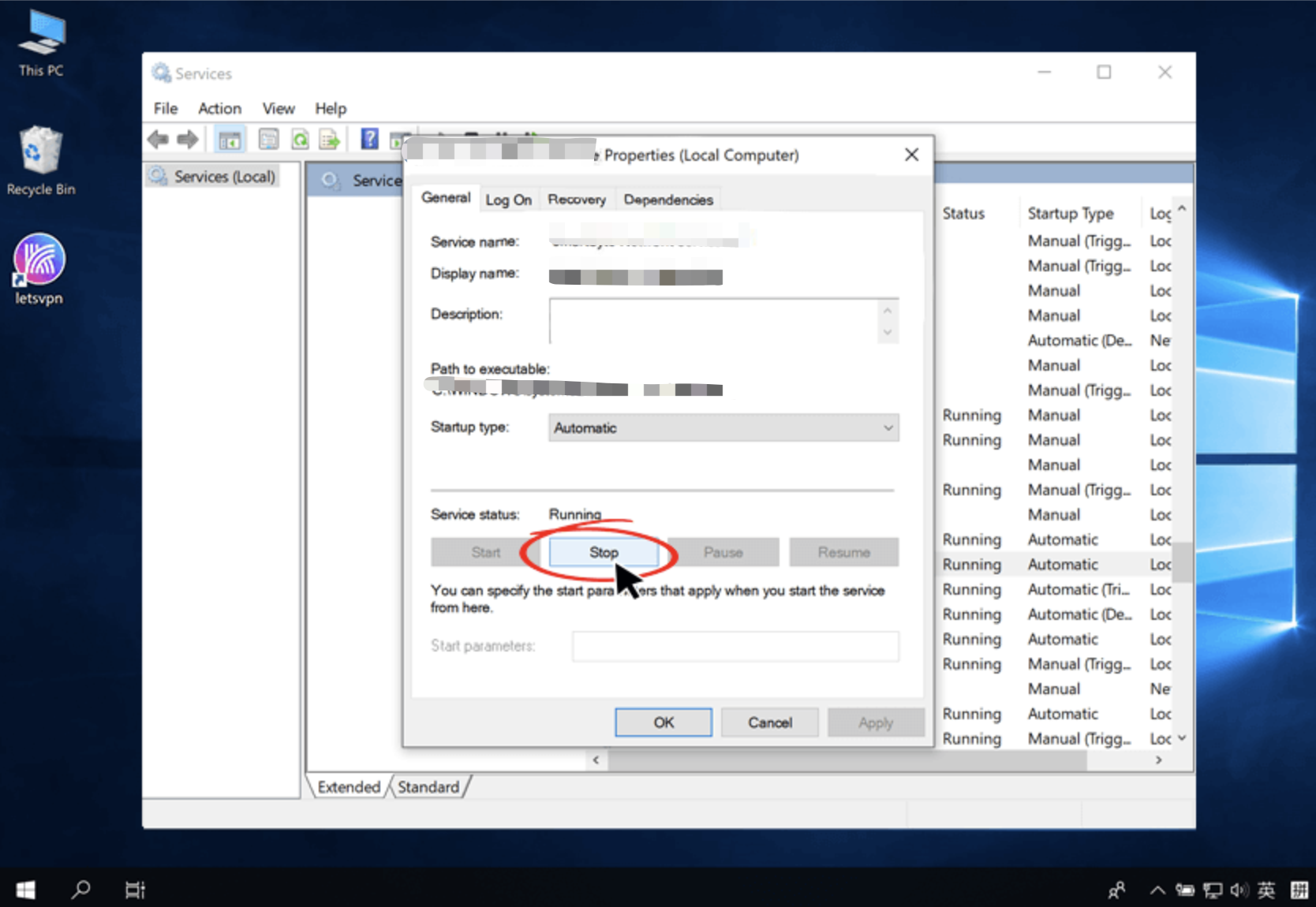
- Adjust it to “Disabled” in Startup type
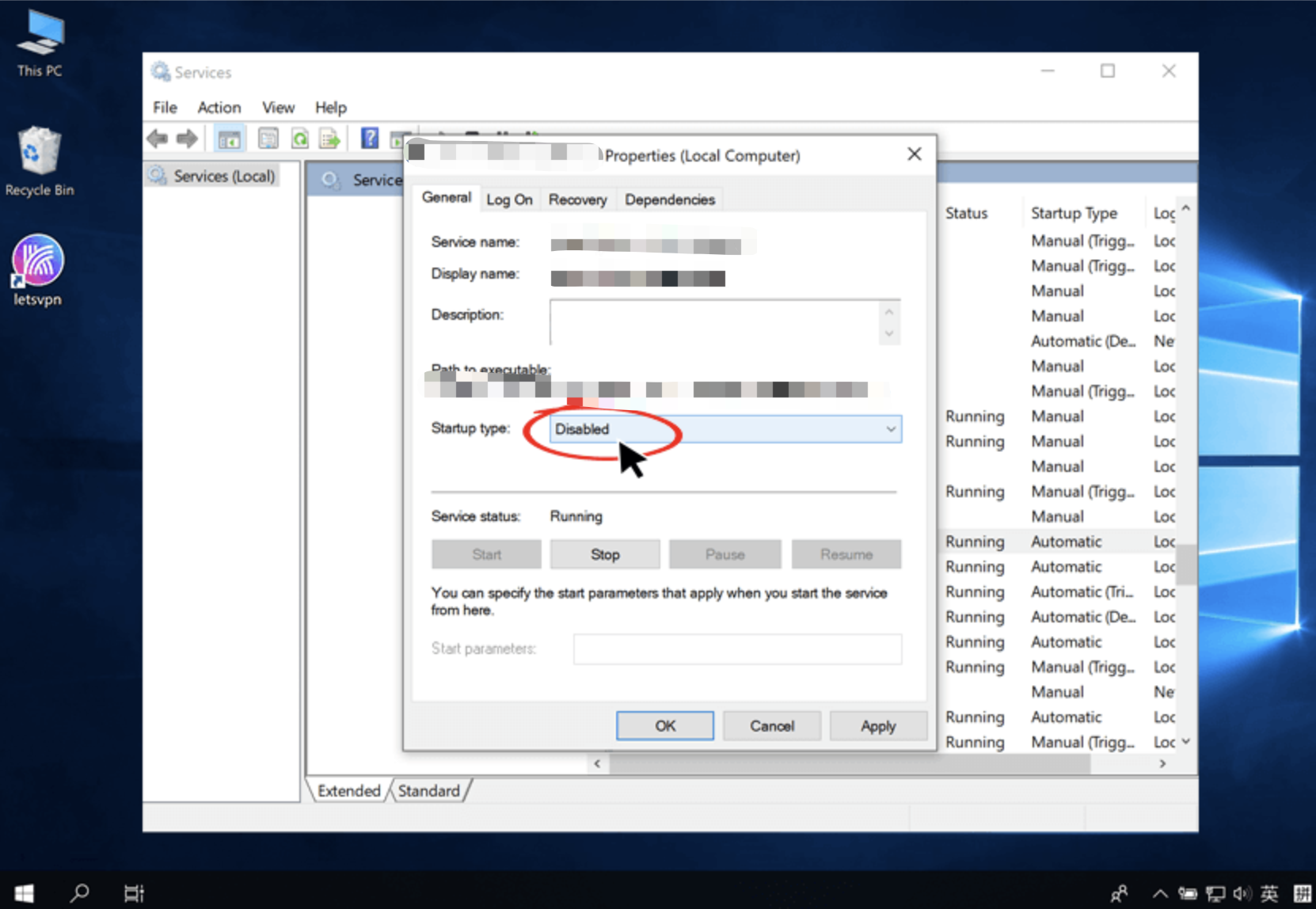
- Click “OK” after the Service Status Becomes “Stop”
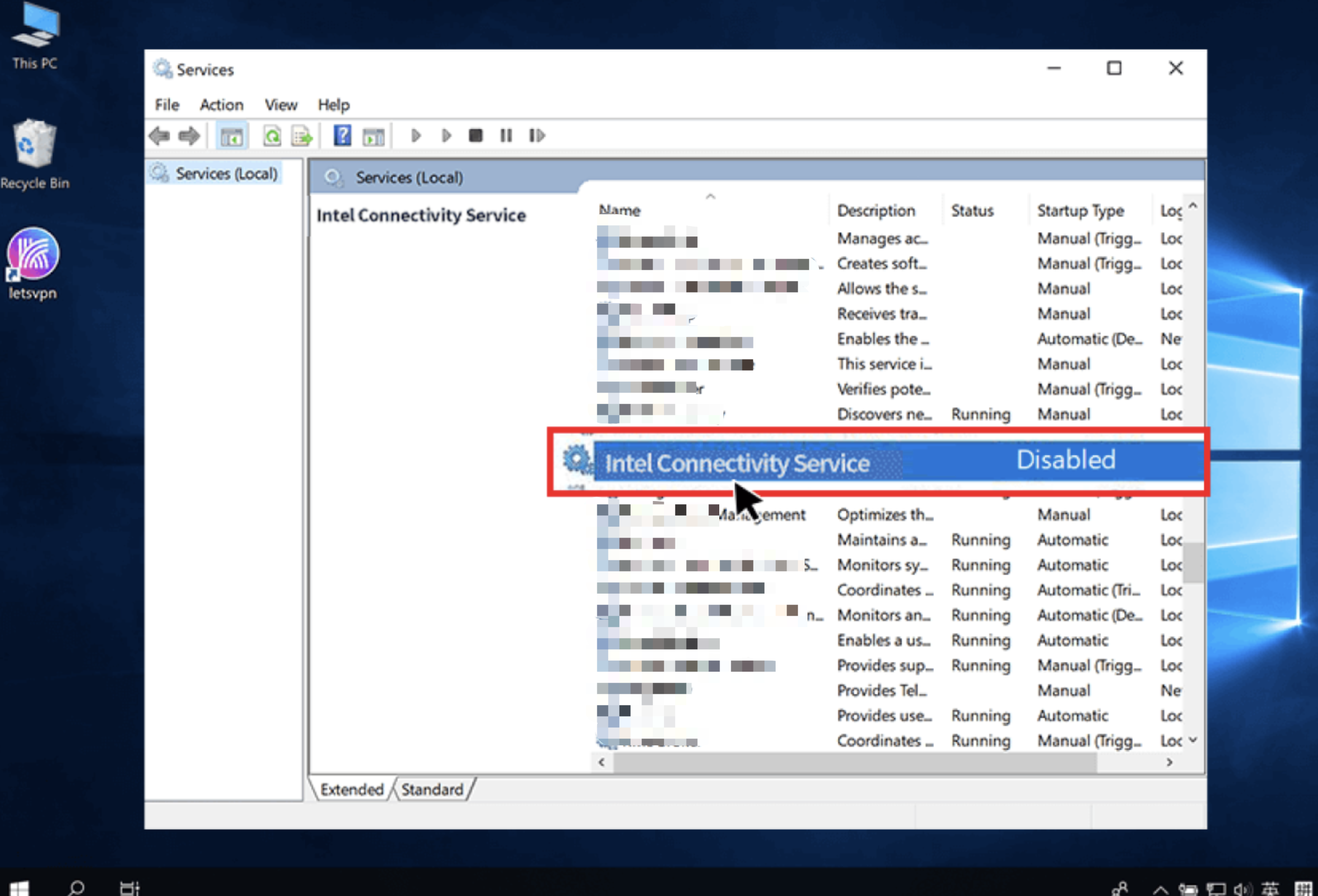
- The status of Intel Connectivity Service will be shown as “Disabled” after the setting is successful.
Please don’t hesitate to contact us via online customer service in LetsVPN app or send an email to letsvpn@rbox.me. Our professional customer team will give you an immediate action to reply to you.
这篇文章是否解决了您的问题?