
Remote debugging over TeamViewer

When you encounter some difficult problems while using LetsVPN Windows, our engineer will provide remote support via TeamViewer to help you.
Due to the complexity of Windows operating system, you might encounter some difficult problems that can’t be solved by yourself. Thereby, our technical engineer will provide remote support via TeamViewer to help you solve the problems. Please simply follow the instructions.
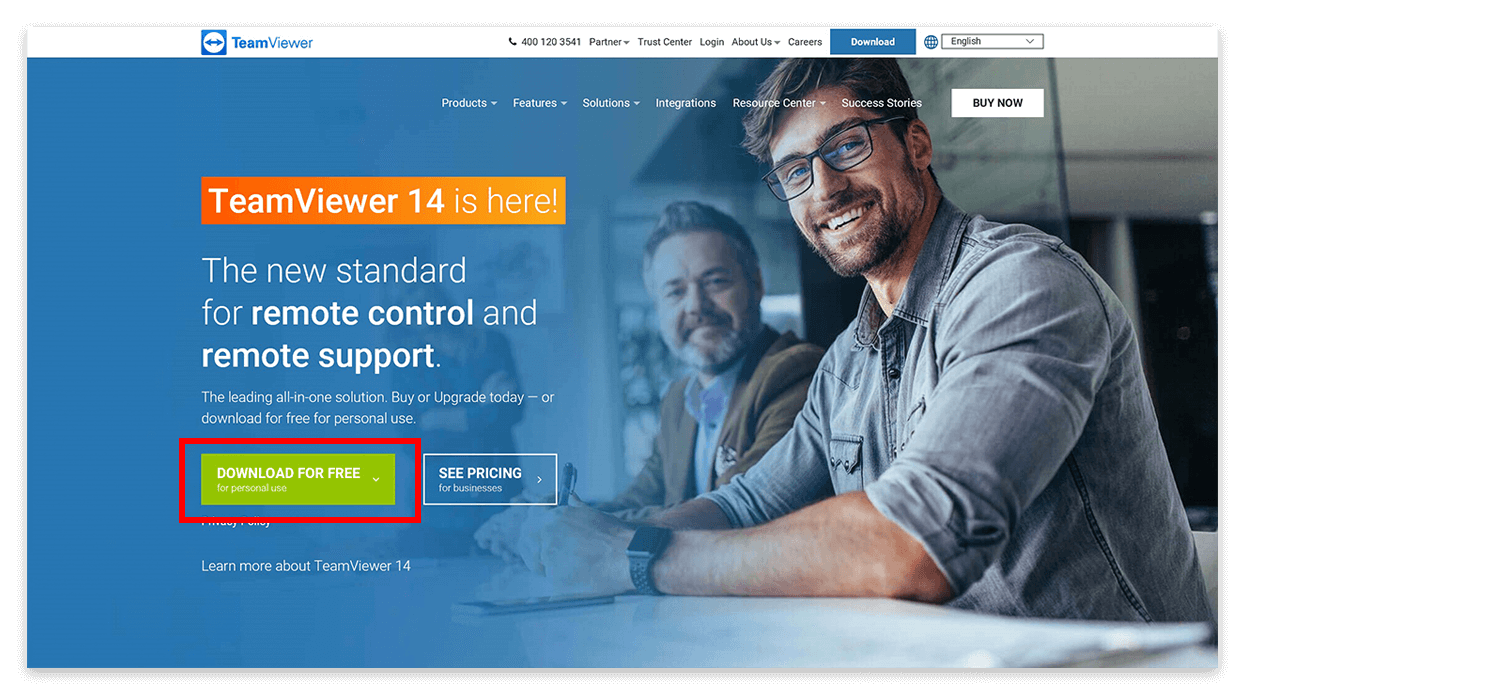
1.Download TeamViewer
Go to TeamViewer.com, click “Download for Free”.
2.Install TeamViewer
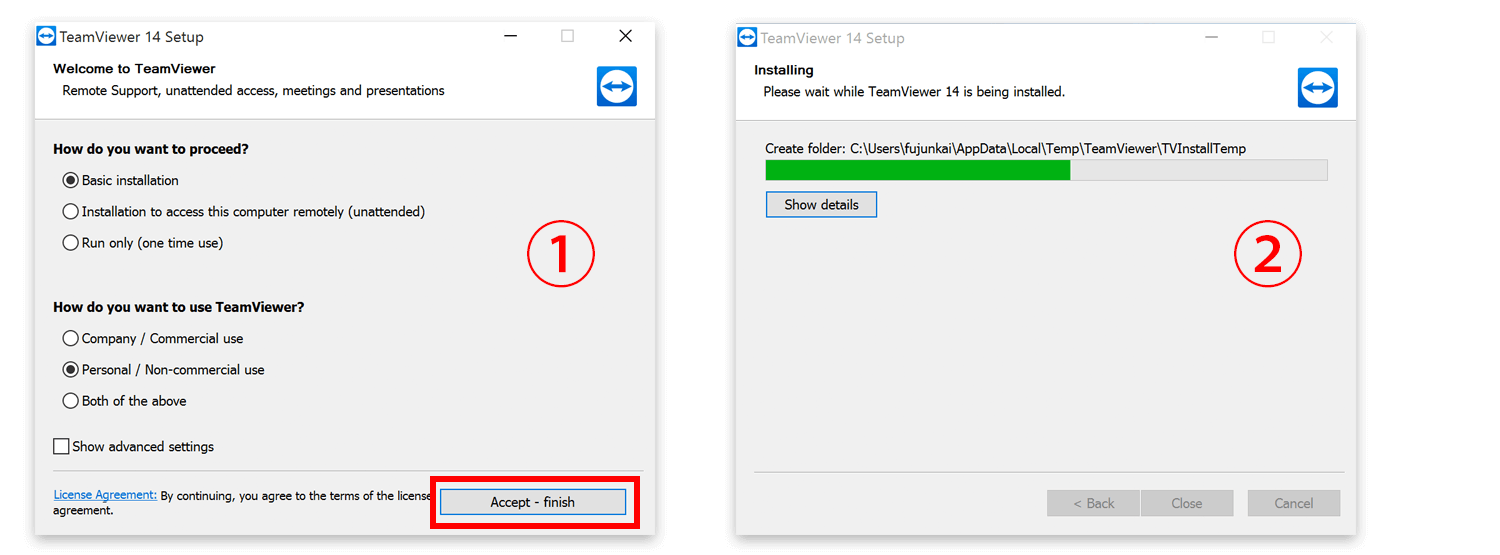
Open the download installer and click Basic installation.
Please select Personal/Non-commercial use.
3.Get Your ID and Password
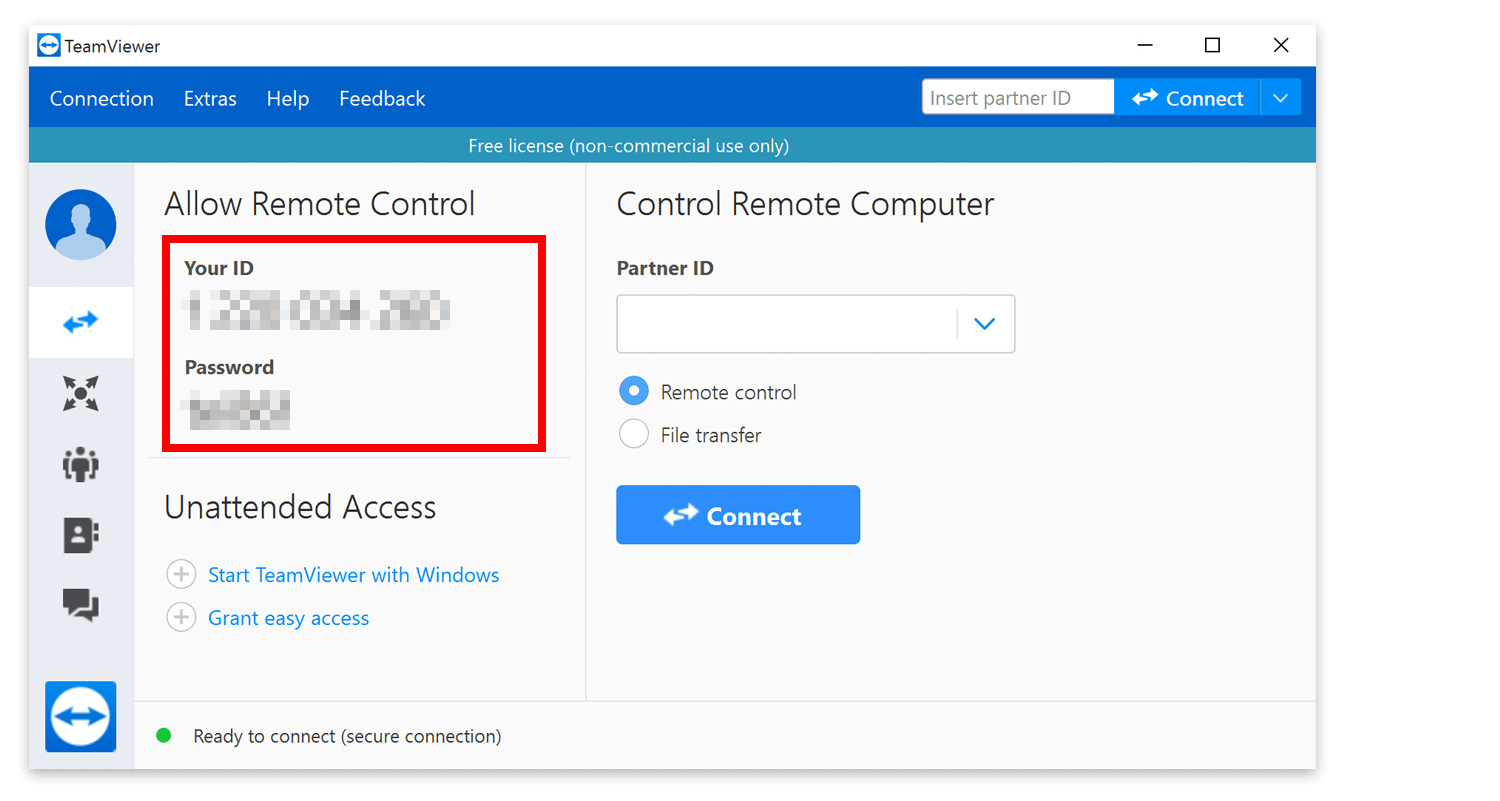
Your ID and Password of your computer will appear in the red box when you open TeamViewer. These are required when our technical engineer remotely control your computer.
4.Click Finish and Close TeamViewer
Please close TeamViewer after debugging finishes.
Note: Your TeamViewer ID is fixed. However, the password changes every time when you open TeamViewer. Please be assured that your personal information is secure.
Related article:
Microsoft Network Monitor will efficiently help technical engineer locate your problem. For more details, please read the article.
这篇文章是否解决了您的问题?